
Advent of Cyber 2025 – Day 6 Walkthrough
Question 1
Static analysis: What is the SHA256Sum of the HopHelper.exe?
There are lots of ways to get the SHA256Sum, including the Linux command ‘sha256sum‘ or in Windows Powershell, ‘Get-FileHash path\to\file.ext -Algorithm SHA256‘.
However an even easier way is simply to use PEStudio! The acronym ‘PE’ stands for ‘Portable Executable’, and describes Windows executables like .exe and .dll files. Portable executables have a well-defined structure and it’s useful for both offensive and defensive cybersecurity specialists to have a solid understanding of both. If you’re interested in learning more about portable executable files, I recommend this series of deep-dive articles from Offwhite Security.
Let’s get back to the task – finding the sha256 sum of the HopHelper executable. Open the file in PEStudio, then look for the file > sha256 property as shown below:
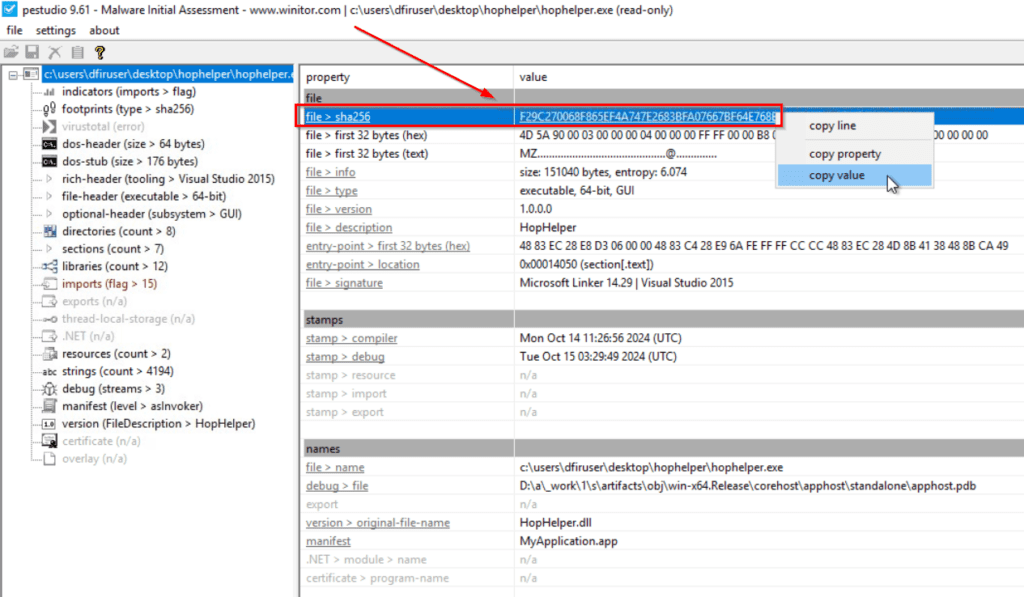
Right click, then select ‘copy value’.
Answer Hint:
Open PEStudio; then select ‘file > open’ to load HopHelper.exe. Then look for the corresponding entry.
Question 2
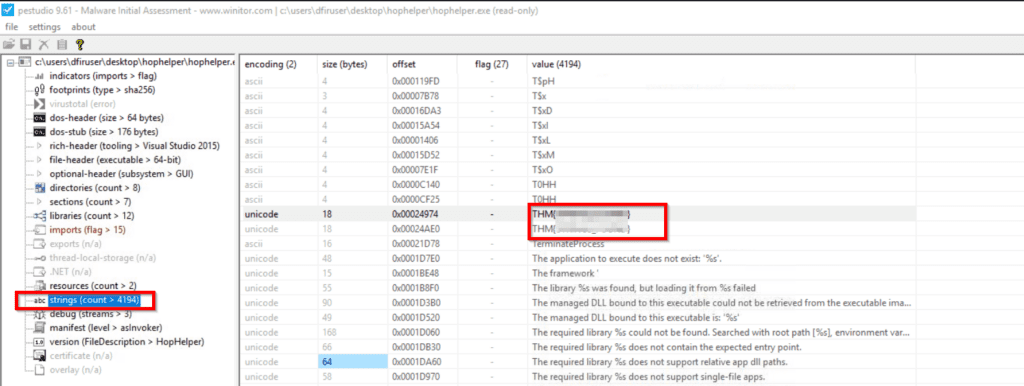
Static analysis: Within the strings of HopHelper.exe, a flag with the format THM{XXXXX} exists. What is that flag value?
In PEStudio, locate the ‘Strings’ option in the left pane. Then, look for the flag that starts with ‘THM{‘. You can sort the strings by value to make this easier. The flag is actually found twice, as shown below:
Answer Hint:
Sort the file’s strings by value, then look for the string that starts with ‘THM’.
Question 3
Dynamic analysis: What registry value has the HopHelper.exe modified for persistence?
We’ll use Regshot to help us answer this question. It allows us to take a before and after snapshot of the Windows Registry, and then it compares them to see what has changed.
After generating the log file, we can search for the HopHelper executable as shown below:

This registry entry is described in the Microsoft documentation here and is used to launch HopHelper.exe every time the user logs on. This is a common method of persistence, although easy to detect.
Answer Hint:
Use Regshot as described above to identify the correct registry value. Note that the answer format starts with ‘HKU’ and ends with ‘Helper’ – it doesn’t include the path to the HopHelper executable.
Question 4
Dynamic analysis: Filter the output of ProcMon for “TCP” operations. What network protocol is HopHelper.exe using to communicate?
After detonating the malware executable, stop the ProcMon capture and use two filters – one for the Process Name (HopHelper.exe) and one for TCP Operations (make sure to select ‘contains’ TCP).
The final output shows us the TCP connections made with the C2 server, including the protocol:

Answer Hint:
Look for a common TCP protocol used for unencrypted web traffic.